How to Integrate Moodle with Popular Platforms like Google Drive?
In India and around the world, e-learning is on the rise, and platforms like Moodle are driving the shift. But for educators and learners today, flexibility and collaboration are just as important as content. The demand for integrating Moodle with cloud-based tools like Google Drive has increased significantly in schools and universities that adopt Google Apps for Education.
Taking advantage of this powerful integration between Moodle and Google Drive streamlines file sharing and assignment submissions, but it transforms the way users interact with the LMS as a whole. Through this integration, students and staff alike experience a smoother and more user-friendly learning experience, from simplifying resource access to reducing administrative tasks.
This blog will help you learn everything you need to know about Moodle Google Drive integration. You will learn here how to set it up, explore its key benefits, and find out which Moodle plugins you need to make it work smoothly. Using Google Drive, you can enhance your Moodle environment in a clear, step-by-step manner.
Google Drive Integration with Moodle Using OAuth2 + Repository Plugin
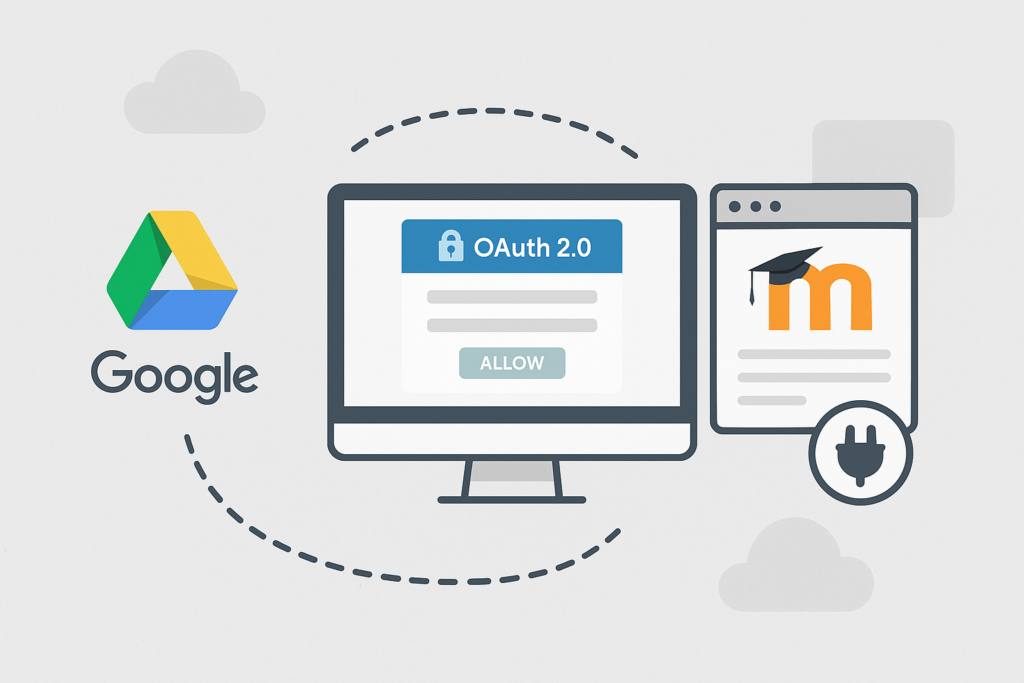
With this setup, you can easily access Google Drive content directly inside Moodle using Moodle’s built-in authentication and the Google Drive Repository plugin. It includes the following steps:
Step 1) Set Up Google OAuth2 Services in Moodle
To begin, first, you’ll need to allow Moodle to access your Google Drive securely by using OAuth 2.0 services.
Please follow the steps below:
- Go to Site Administration → Server → OAuth 2 services.
- Click Create new service → choose Google.
- Enter your Google Client ID and Client Secret (from Google Developer Console).
- Then save the configuration.
- If you have a Google Workspace (formerly G Suite) account, you can enjoy full integration and capabilities.
Step 2) Enable Google Drive Repository Plugin
Once OAuth is configured, turn on the repository that allows Moodle to retrieve files from Drive.
Please follow the steps below:
- Go to Site Administration → Plugins → Repositories → Manage Repositories.
- Enable the Google Drive repository.
- Select the Google OAuth2 service that you’ve configured.
- Set the file selection mode to “Link (make a shortcut)” so that you won’t have duplicates of files.
- Save and finish.
Now, users can access their Drive files from Moodle’s file picker when they upload or embed content.
Step 3) Use Google Drive Files in Moodle
After setup, teachers and students can insert Google Drive files in assignments, forums, lessons, and more.
How it works:
- Click Add file or Insert media.
- Choose Google Drive from the file picker.
- Authorize your Google account (one-time).
- Browse, select, and insert your file.
- The file appears as a live, cloud-based link in Moodle
This keeps your Drive file updated; any changes made in Drive reflect instantly in Moodle.
Step 4) Share Google Drive Links in Moodle
You can also use Google Drive links as URLs, particularly for shared folders, forms, or group materials.
To use Google Drive Links as URLs, follow these steps:
- Share the link (make sure you set permissions) in Google Drive
- Turn editing on in Moodle
- Add a URL resource and paste the link
- Add a name and description that is meaningful to your module
- Save and return to the course
- This would be suitable for forms, reading materials, or shared folders.
Step 5) Embed Google Drive Videos or Files
Need to show videos, PDFs, or presentations from Drive?
- Get the embed code from Google Drive
- In Moodle, use a Label or Page
- Switch to HTML view and paste the embed code
- Your file will now be displayed directly within the Moodle content area.
Using this method, users can sign in securely using their Google accounts, access Drive files directly from Moodle, sync files in real-time, and share files without using third-party software. Moodle’s built-in features allow users to link, embed, or attach Drive files easily in courses, assignments, and forums, without the use of Google Classroom or LTI tools.
Integration of Google Drive and Moodle via External Tool (LTI 1.3 Integration)
This method integrates Google Drive as an external tool using LTI(Learning Tools Interoperability), specifically LTI 1.3, allowing documents from Google Drive to be accessed, submitted, and managed directly within Moodle. Instead of storing files in repositories, Moodle uses this method to submit assignments, collaborate on files, and handle Drive files in activities.
The following are the steps to integrate Google Drive with Moodle via LTI:
Step 1) Access Google Workspace for Education Tools
You need to have a Google Workspace for Education account. Ask your Google admin to enable:
- Google Drive LTI Tool
- Google Assignments (LTI 1.3)
These services are required to create secure links between Moodle and Drive.
Step 2) Register Moodle as an LTI Platform with Google
Now, go to the Google Assignments LTI configuration page:
- Click Set up integration and choose LMS: Moodle.
- Download the LTI credentials (Client ID, Deployment ID, etc.)
Step 3) Configure External Tool in Moodle
Log in to Moodle as an admin.
Go to:
- Site administration → Plugins → Activity modules → External tool → Manage tools
- Click Configure a tool manually
Fill in the following details:
- Tool name: Google Drive (LTI)
- Tool URL: https://assignments.google.com/lti/
- LTI version: LTI 1.3
- Client ID, Deployment ID, Public Keyset URL, etc., from your Google LTI credentials.
- Set “Content-Item” to enabled to allow Drive file linking.
- Save the tool and mark it as “Show in activity chooser.”
Step 4) Use Google Drive in Course Activities
Once added, teachers can:
- Choose Google Drive (LTI) from activity types.
- Attach Google Docs, Sheets, Slides from their Drive
- Assign a copy of a Drive file to each student (auto-creates individual copies in their Drives)
Students can:
- View and submit assignments using Google Drive.
- Submit Docs or other Drive files directly (without downloading/uploading)
Using this method enables Drive-based assignment submissions (each student gets a copy). Teachers can distribute and manage Drive documents. It supports real-time editing and version control via Google Drive and is fully compatible with Google Workspace for Education.
Why Integrate Moodle with Google Drive?
Managing content, sharing resources, and collaborating with students is easier when you integrate Google Drive with Moodle. In today’s fast-paced e-learning environment, efficiency and flexibility are essential. By integrating Moodle with Google Workspace, users stay organized and focused while using the familiar tools of Moodle LMS.
Key Benefits of Google Drive Integration with Moodle
Attach and Access Google Drive Files Instantly
Teachers and children can easily insert Drive documents such as Docs, Sheets, Slides, or PDFs into assignments, quizzes, forums, or lesson plans. No need to upload the file twice or go out of Moodle to search for the right document.
Save Moodle Server Space
Users can link any content hosted on Drive rather than storing heavy videos or presentations on the Moodle server. All of this reduces any load on your LMS infrastructure, keeping smooth and fast access for users.
Enable Real-Time Collaboration
It becomes easy to collaborate on group projects using Google Docs or Slides. Editing and commenting are possible in real time, which makes collaboration highly interesting and effective. Teachers don’t need to download the work to monitor or guide it in real time.
Keep Files Synced Automatically
Moodle quickly reflects any changes users make to the drive file. There is no need to re-upload a worksheet or lecture slide because your students always see the most recent version when making changes.
Simplify Assignment Submissions with Drive Links
Rather than sending large attachments, students can send Google Drive file links to submit their work. This ensures better compatibility, quicker grading, and easier file organization, especially for group and media-intensive assignments.
Improve Mobile Accessibility
Students who use the Moodle mobile app can easily upload or view files from their phones or tablets because Google Drive is cloud-based. This makes remote learning more accessible and inclusive.
Final Thoughts
The integration of Google Drive and Moodle is more than just an upgrade of technology. It’s a smart move for a more efficient, connected, and future-ready learning environment. By integrating Google Docs, Sheets, and Slides, we can reduce file management hassles, eliminate constant uploads, and facilitate real-time collaboration.
With this solution, you can simplify your digital learning operations while enhancing the overall user experience, whether you’re managing an LMS for a school, university, or corporate training program. By integrating Google Drive into Moodle, educators and students alike can save server space while enabling mobile-friendly workflows.
If you’re looking to make Moodle more powerful and easy to use, connecting it with Google Drive is one of the smartest things you can do.
Need help integrating Moodle with Google Drive?
Contact IDS Logic today. We’re here to help with custom Moodle development, plugin configuration, and secure integrations.
Frequently Asked Questions
Q1) Can we control which users have access to Google Drive in Moodle?
Yes! Admins in Moodle can configure role-based permissions to check which users can access Google Drive and repositories. So, if you want to lock students or random guests out but allow teachers or supervisors access, you can easily do that. It’s all about keeping things in check, making sure only the right people access the right stuff, and nobody’s breaking your organization’s data rules.
Q2) How secure is the Google Drive integration in Moodle?
Yes, it is extremely secure. This integration employs OAuth 2.0, signifying that users have a direct authentication with Google without exposing their credentials to Moodle. Furthermore, every file access is done by Google’s permission system, and Moodle is only allowed to use the content implicitly through accessing the reference or using the access token; it never actually stores the content. To have even more control over the situation, you can also use Google Workspace to set up domain-wide limitations.
Q3) Will embedded or linked Google Drive files work for guest users in Moodle?
This is determined by the Google Drive sharing settings. When a file or folder is configured so that “Anyone with the link can view,” even Moodle guest users, those who do not have a login, can access it. Guests won’t be able to see it, though, if it’s limited to a Google Workspace domain or particular users. When addressing public or open-access courses, always make sure that sharing permissions are set correctly.
Q4) Can we use Google Shared Drives (Team Drives) with Moodle integration?
Yes, but with some limitations. If your Google Workspace admin allows access to Shared Drives, users can use the Moodle file picker to see and connect files from those drives. However, users must be Shared Drive members, and Moodle will only show content that users have access to. Furthermore, Moodle does not currently support full folder-level synchronization with shared drives as of 2025.